This workflow automatically collects all comments from a specified YouTube video and analyzes the sentiment of each comment using an AI model (eg, GPT, Claude or Gemini). The sentiment ( Positive, Neutral, or Negative ), its strength, and confidence score are extracted and saved into a connected Google Sheet for easy access, reporting, and visualization.
Advantages:
🧠 AI-Powered Sentiment Analysis
- Uses modern language models (LLMs) to categorize comments with high accuracy.
📺 Ideal for YouTube Creators & Marketers
- Provides insights into audience perception of videos, campaigns, or products.
📈 Real-Time Feedback Monitoring
- Quickly identify trends in viewer sentiment across large comment volumes.
📊 Automatic Reporting
- Saves results in Google Sheets for easy sharing or dashboard integration.
🔁 Handles Pagination
- Automatically fetches all comments, even from multi-page videos.
⚙️ No-Code Customization
- Easily adaptable to other platforms (eg, TikTok, Instagram) or data sources.
📥 Simple Setup
- Requires just a YouTube video ID and API key — no coding needed.
🔁 Loop and Update Logic
- Continuously updates sheet with new results, avoiding duplicate processing.
🧩 Modular Design
- Easy to expand (eg, reply classification, toxic comment detection, translation).
💬 Multi-Language Compatibility
- AI can be configured to analyze comments in different languages with minimal setup.
How It Works
-
Trigger : The workflow starts manually ("When clicking 'Test workflow'") or can be scheduled.
-
Fetch Comments : The "Get API Comments" node retrieves comments from a YouTube video using the YouTube API.
-
Process Comments :
- Extracts comments and replies via the "Comments" node.
- Splits them into individual entries ("Split comments").
- Saves raw comments to Google Sheets ("Save comments").
-
Sentiment Analysis :
- Uses Google Gemini AI (or another model) to classify each comment as Positive, Neutral, or Negative .
- Captures strength and confidence metrics for deeper insights.
-
Update Results : The "Update sentiment" node writes the analysis back to Google Sheets, marking processed rows.
-
Pagination Handling : Checks for multiple pages of comments ("Multipage?") and loops until all are processed.
Setup Steps
-
Prepare Google Sheet :
- Clone the template: YouTube Comments Sheet .
- Ensure columns exist:
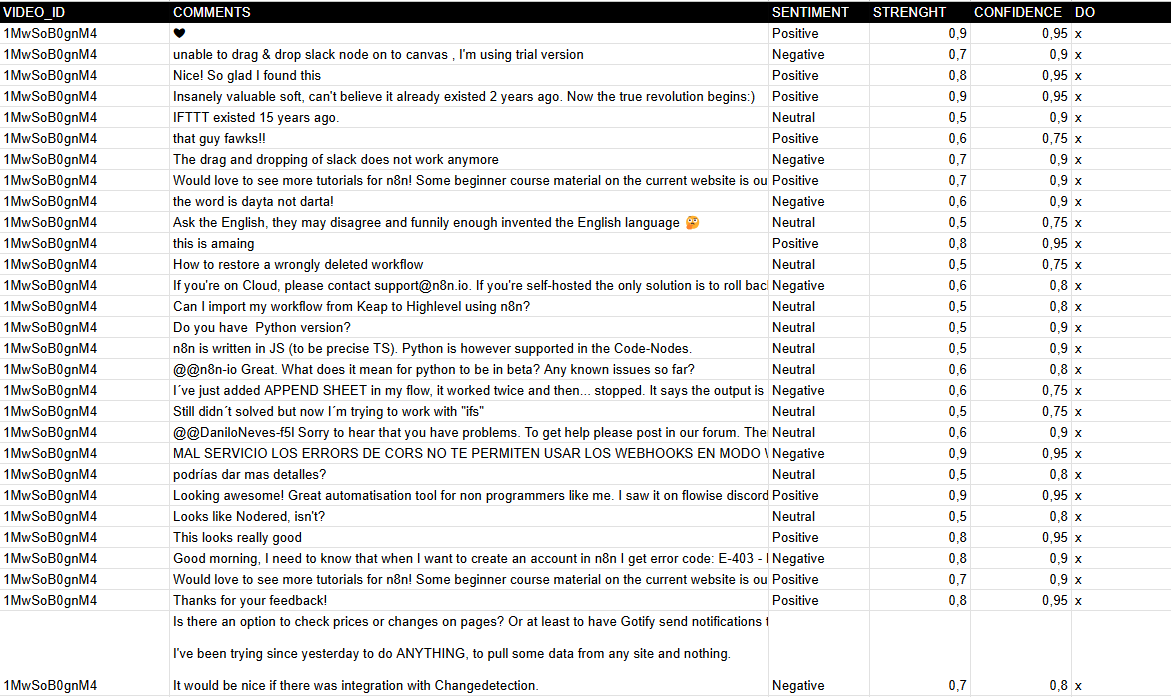
VIDEO_ID , COMMENTS , SENTIMENT , STRENGTH , CONFIDENCE , and DO (tracking column).
-
Configure YouTube API :
- Obtain a YouTube API key from Google Developers Console .
- Add it to the "Get API Comments" node under Youtube Query Auth (parameter:
key ).
-
Set Video ID :
- Replace the default
xxxxxxxx in the "Video ID" node with your target YouTube video ID.
-
AI Integration :
- Ensure Google Gemini API credentials are configured in the "Google Gemini" node.
-
Run the Workflow :
- Test manually or automate execution (eg, hourly/daily) to analyze new comments.
Output : A Google Sheet with categorized sentiments, enabling trend analysis and audience engagement tracking .
Need help customizing?
Contact me for consulting and support or add me on Linkedin .